
Mobile payments are reshaping how people manage money, spend, and even split bills. For many users, especially those in Japan, the PayPay app is emerging as a trusted leader in seamless digital transactions.
But how exactly does someone install the PayPay app, and what does secure verification involve?



This article aims to answer those questions, especially for newcomers, students, expats, and anyone who wants a safer, easier cashless experience.
Readers looking for genuine clarity on the process may find practical explanations and helpful suggestions ahead.
Why More People Are Using the PayPay App
There’s a good reason why mobile payments are gaining ground. The PayPay app isn’t just convenient; it offers several advantages that many bank apps or cards don’t. Why is this the case?
Wide Acceptance and Fast Transactions
PayPay can be used in millions of shops, cafes, and even vending machines across Japan.
The transaction process often takes just seconds. For someone a little impatient or on a tight schedule, it’s a subtle time-saver that adds up.
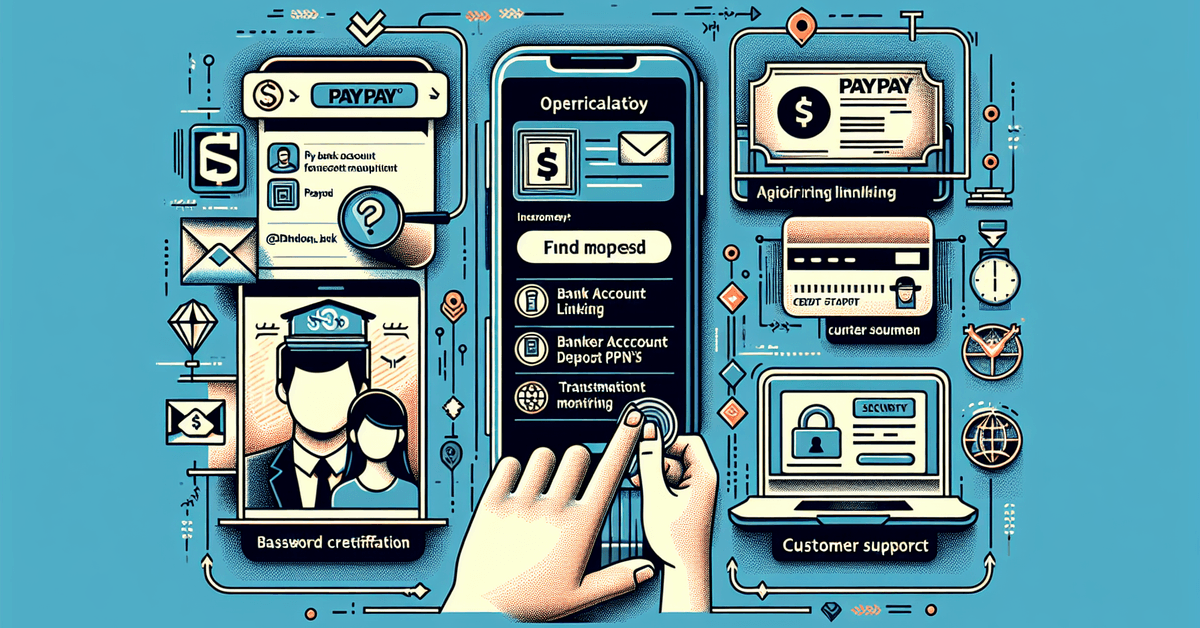
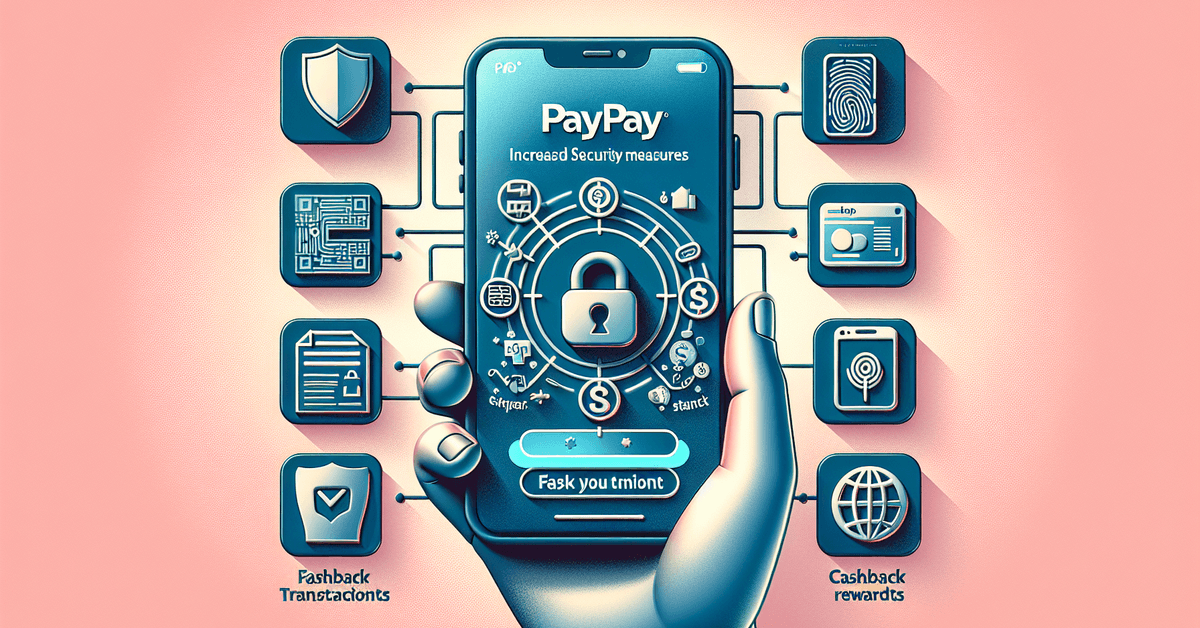
Enhanced Security Measures
Unlike cash or cards that can be misplaced, the PayPay app is secured by multiple authentication options.
Biometric locks, passwords, and even step-up verification methods provide added reassurance. The company’s focus on privacy measures might not eliminate risk entirely, but it certainly reduces it.
Attractive Cashback Campaigns
Occasionally, PayPay partners with brands or municipalities to offer cashback rewards.
This could be especially interesting for shoppers hoping to stretch their yen a bit further. Not every campaign is equal, so following the app’s news helps maximize value.
How to Install the PayPay App on Your Device
Installing the PayPay app shouldn’t require much technical knowledge.
The steps are straightforward, although on some devices, regional settings and app store accounts might cause minor hurdles.
Most users with a modern smartphone can expect the process to be quick—these are the core steps.
Checking Device Compatibility
PayPay is available on both iOS and Android. Most devices with recent updates will support the app.
Still, older phones occasionally struggle with new features or security updates. If installation fails, checking software version compatibility, as listed in the app store description, may help.
Finding the Official PayPay App
Search for “PayPay” in the Apple App Store or Google Play Store. Look for the official icon: a stylized red “P” with a white background. Hard to miss, though imitations sometimes appear.
Always double-check if the developer is listed as “PayPay Corporation.” That’s the official source.
Downloading and Installing
Tap the install button and wait a moment. Installation generally takes less than a minute on a decent connection.
If there’s a problem with space or permissions, the device usually prompts for a solution. Freeing up some storage or restarting typically fixes minor issues.
Setting Up a New PayPay Account
Once the PayPay app is successfully installed, the setup process begins.
Opening the app for the first time, users encounter the welcome screen, followed by gentle onboarding prompts. The steps are user-friendly, but some details might be worth noting.
Accepting Terms and Policies
Users are asked to review and agree to the terms of service and privacy policy. For some, it feels tedious, but understanding key rights and obligations can prevent misunderstandings.
Occasionally, legal jargon is tricky, yet the main points boil down to privacy and data protection practices.
Registering With a Mobile Number or Email
PayPay’s registration supports both phone numbers and email addresses. Choosing a phone number often simplifies things, especially for verification.
Some people opt for email if their mobile plan has SMS issues or international restrictions. Either option is valid; it just depends on preference and circumstance.
- Enter the mobile number or email address
- Wait for an SMS or verification email
- Enter the code received to confirm identity
Setting a Secure Password
The app typically asks for a 6–8 digit password. Best practices suggest avoiding birthdates or common patterns. Password managers, while optional, can help keep credentials safe.
PayPay Account Verification: Why It Matters
Verification is a double-edged sword: it unlocks essential features, but it also asks for personal details. While some users hesitate, this process protects against fraud and allows higher transaction limits — necessary for larger purchases or money transfers.
Uploading Identification Documents
In Japan, PayPay may request documents like a residence card, My Number card, or passport for non-citizens.
Documents are uploaded securely via app (using the camera), usually prompted after initial login. The process can feel a bit intrusive, but it’s meant to serve as a safeguard.
Address and Personal Details
The app requests a current residential address, full legal name, and date of birth. Double-checking for typos is suggested, as inconsistencies can slow down verification.
Verification Review Timeline
PayPay typically reviews submissions in 1-3 business days. Sometimes, manual review extends this, especially if images are blurry or incomplete. It’s sometimes a waiting game, but users usually receive push notifications about status updates.
Adding Funds and Linking Payment Methods
With account verification complete, full access to PayPay’s features is granted. Adding funds is the next priority for most users. PayPay supports different funding methods, some faster and easier than others.
Bank Account Linking
The app allows linking Japanese bank accounts for seamless deposits and withdrawals. This may require an extra verification step with your bank.
Setup instructions are provided on-screen, often involving two-factor authentication for added security.
ATM Deposits and Convenience Stores
Alternatively, users can deposit cash through partnered ATMs or at convenience stores. Codes generated via the app are scanned at these locations. Detailed partners and steps are listed within the app itself.
Credit or Debit Card Registration
Some might prefer registering a card. The card details are encrypted, and PayPay never stores full card numbers. For larger transactions, additional authentication may be needed.
Ensuring Account Security
Mobile payments carry both novelty and risk. PayPay employs several security features to protect account access and financial data, but user vigilance also plays a role.
Biometric and PIN Locks
The app can enable fingerprint, facial recognition, or PIN codes to prevent unauthorized access. Setting these up takes only a few moments and adds another barrier for unwanted intrusions.
Monitoring Transaction History
Checking the in-app history helps identify irregular activities. Unexpected charges or strange login locations should be flagged. Contacting PayPay support can resolve most security-related questions.
Troubleshooting Common Installation or Verification Issues
Occasional hiccups can stall the smooth setup of the PayPay app. While many resolve quickly, here are some common speed bumps and tips on what might help.
- App Doesn’t Start: A simple device restart or reinstall usually fixes this.
- Verification Delayed: Double-check images and personal data, or wait a day or two.
- SMS Not Arriving: Network issues or spam filters can block messages; switching to email verification can serve as a backup.
- Account Locked: Too many incorrect password attempts may trigger a lockout; the in-app recovery path or the support page can help reset access.
Legal and Privacy Considerations for PayPay Users
While PayPay makes digital payments easy, users still have legal and privacy responsibilities.
Japan’s anti-money laundering laws apply, meaning all accounts must be linked to verifiable personal data.
PayPay’s privacy policy outlines how it uses, stores, and protects personal data. For those cautious about sharing documents, reading these policies is suggested to understand their rights.
Handling Disputes and Refunds
Problems rarely arise, but if they do, PayPay has an established process for handling disputes, especially if unauthorized charges occur.
Reporting issues promptly increases the chance of swift resolution. Most legitimate problems are handled efficiently through the app’s support center.